You open your inbox and see forty unread messages, three recruiter pings, and a job alert buried somewhere under newsletters you never asked for. Somewhere in that pile is the role you want, but by the time you spot it, the posting has already started collecting applicants. That's the problem with most job alerts email setups, they aren't wrong, they're just too blunt to work under real recruiting pressure.
The fix is not "turn alerts on." The fix is to treat alerts like a precision instrument, with sharper filters, better timing, and different channels for different kinds of roles. When that's done well, email stops being noise and becomes a usable early-warning system.
Table of Contents
- Why Most Job Alerts Email Setups Fail Before They Start
- Where Can You Get Job Alerts by Email?
- Building Filters That Match Roles You Would Actually Apply To
- Saved Searches and Alert Templates You Can Reuse
- Timing Alerts Around When Hiring Managers and Recruiters Open Inbox
- Layering Automation, Forwarding, and Multi-Channel Delivery
- Cutting Alert Fatigue Without Dropping High-Value Roles
- Your First-Week Job Alert Email Checklist
- Frequently Asked Questions
Why Most Job Alerts Email Setups Fail Before They Start
A senior data engineer I worked with once showed me a perfect Monday-morning posting from a target company. The problem was obvious in the inbox timeline, the role was discovered late, the alert had been buried, and the application went in on Wednesday after the queue had already formed. That's how people lose roles they were fully qualified for.
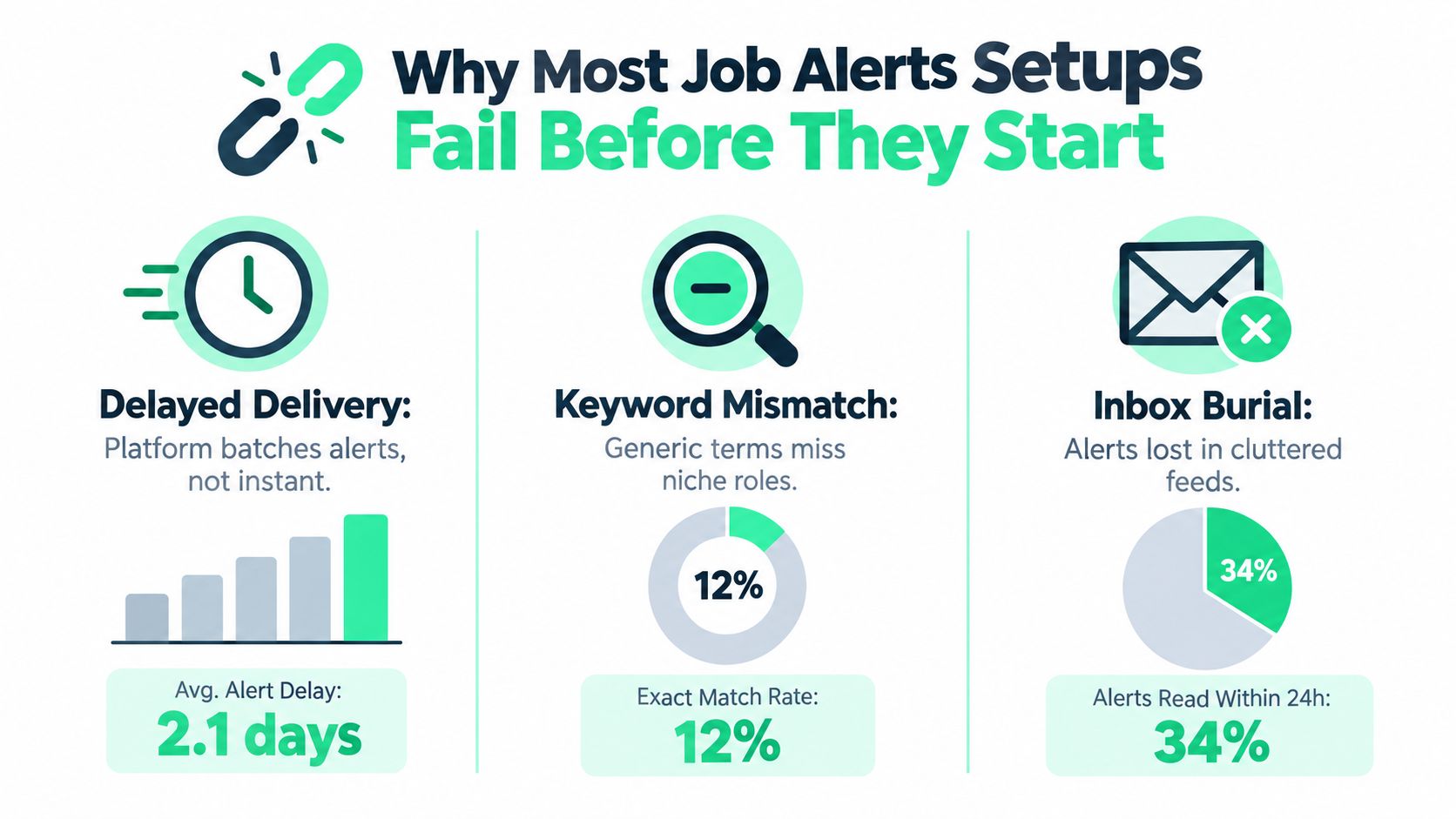
The deeper failure usually starts in the setup. Keyword-only filters pull in adjacent titles that look relevant on paper but aren't the job you'd take, default digest schedules bury alerts under marketing mail, and a single inbox mixes job search with everything else until nothing stands out. When alert systems are designed like passive notifications, they collapse into noise fast.
Practical rule: if a role can sit in your inbox long enough to be treated like normal email, your setup is already too loose.
That matters because job alerts are not a minor feature. A large job-board performance analysis reported more than 2 billion job alert emails across 23 million+ jobs and 220 million job views, with emails that triggered applications converting at an average rate of 13% and email-sourced traffic accounting for 15% of all applications overall. The same dataset found the top-performing posting drew 46% of its applications from job alert emails, which shows how uneven alert value can be across listings. Those figures make one thing clear, alerts can materially influence applicant volume and timing when the match is sharp and early. RecruitingDaily's performance overview
Why a loose alert feels productive but works against you
A broad alert makes you feel covered because it keeps sending. That's the trap. If every variation of "engineer" or "analyst" lands in the same bucket, the system starts rewarding volume instead of fit, and you spend your best attention triaging junk.
There's also a timing problem. Google Careers documents alerts as built-in saved-search notifications with daily, weekly, or monthly frequency controls, and USAJOBS tells users to create alerts so new jobs can be emailed. That model is now standard across consumer, government, and enterprise systems, but standard doesn't mean strategic. Google Careers alert settings
The job seeker survey data in the same Google Careers reference says 50% of respondents wanted job alert emails to notify them of the latest matching openings. That demand is real, but demand alone doesn't make the setup useful. The setup still has to filter well enough that the first alert you notice is one you'd act on.
Where Can You Get Job Alerts by Email?
Every major board offers email alerts on a saved search. None of them email you faster than once a day.
| Platform | Email frequency | Worth knowing |
|---|---|---|
| Daily or weekly | Sent by email, app notification, or both. Alerts created on mobile default to daily. | |
| Indeed | Daily or weekly | No email goes out if nothing new matches. Each alert has to be deleted separately. |
| Glassdoor | Daily or weekly | Set up from a search results page or your notification settings. |
If LinkedIn's digest is your main source, LinkedIn alerts vs third-party tools covers what that delay costs you.
Building Filters That Match Roles You Would Actually Apply To
Good alert design starts with boolean logic, not a single keyword box. A useful filter is a set of decisions, include the roles you'd take, exclude the ones you'd never touch, and guard against location or compensation drift. If those decisions aren't explicit, the inbox becomes a sorting job.
Build the filter from title variants and hard exclusions
For a software engineer targeting mid-level product work, the inclusion set should catch common title variants, not just one exact label. Think in terms of OR logic around the role family, then cut away levels and adjacent tracks you don't want.
A workable pattern looks like this:
- Inclusion terms: software engineer, backend engineer, product engineer, full stack engineer
- Exclusion terms: senior, staff, principal, intern, manager, architect
- Hard guards: remote only, or a precise hybrid radius, plus a salary floor if the platform supports it
For a data analyst who wants SQL-heavy work, the logic changes. You want title variants that surface analytical work, then exclude anything too managerial or too entry-level.
- Inclusion terms: data analyst, business analyst, product analyst, analytics associate
- Exclusion terms: senior, lead, director, intern, marketing, operations
- Hard guards: SQL mentioned in the listing, location capped to your actual commute tolerance, salary disclosed when possible
A filter is only good if it fails loudly. If it keeps returning roles you would never apply to, the keywords are too broad.
Handle duplicates and spam before they consume your week
Recruiter reposts, agency spam, and same-company duplicates are a separate problem from relevance. If a search is pulling the same role through multiple boards, or if an agency keeps repackaging the same listing with a different title, the issue is usually not deliverability. It's missing exclusion logic or overlapping sources. When two boards keep sending you the same postings, keep the alert on whichever one sends them first.
Use a simple debugging rule, if your weekly alert count is above 15, the inclusion terms are too loose or the exclusions are incomplete. That threshold isn't a law, it's a practical check. If you can't review the feed without feeling buried, you're not monitoring a search, you're collecting clutter.
For people comparing platform behavior, LinkedIn alert setup guidance is a useful reference point because the core issue isn't whether alerts exist. It's whether the saved search is sharp enough to keep the inbox readable.
| Role Target | Inclusion Terms | Exclusion Terms | Expected Weekly Volume |
|---|---|---|---|
| Mid-level software engineer | software engineer, backend engineer, product engineer | senior, staff, principal, intern, manager | Low to moderate |
| SQL-heavy data analyst | data analyst, business analyst, analytics associate | senior, lead, director, marketing, intern | Low to moderate |
| Product-facing engineer | full stack engineer, product engineer, software engineer | manager, architect, principal, intern | Low to moderate |
Saved Searches and Alert Templates You Can Reuse
The mistake I see most often is rebuilding every job alerts email setup from scratch on each platform. That slows you down and makes the system brittle. A better workflow is to keep one master template, then adapt it for LinkedIn, Indeed, Glassdoor, and niche boards without changing the underlying logic.
Use one master log, then clone it across platforms
Keep a master spreadsheet with the fields that stay stable, role keywords, location radius, salary floor, exclusion keywords, and target company names. That sheet becomes the source of truth when you switch from broad market monitoring to target-company tracking.
One row can drive several reusable searches. backend engineer, remote, EU timezone can turn into four saved searches, one on each platform you trust, with the same role and location rules applied consistently. You get redundancy, but you do not multiply noise.
Name templates so they still make sense six months later
Label searches by role, region, and intent, not by an internal nickname. "Backend EU Remote Core" is easier to recover than "Search 14." When priorities change, version the row instead of deleting it, so you can bring it back if the market shifts again.
Archive stale templates instead of wiping them. Hiring cycles reopen, and niche searches can become useful again. Deleting forces you to rebuild work you already did once.
The same setup works on a broader job-alert platform that supports real-time search and resume matching, such as FindMeJobs. Treat it as one node in the system, not the whole system.
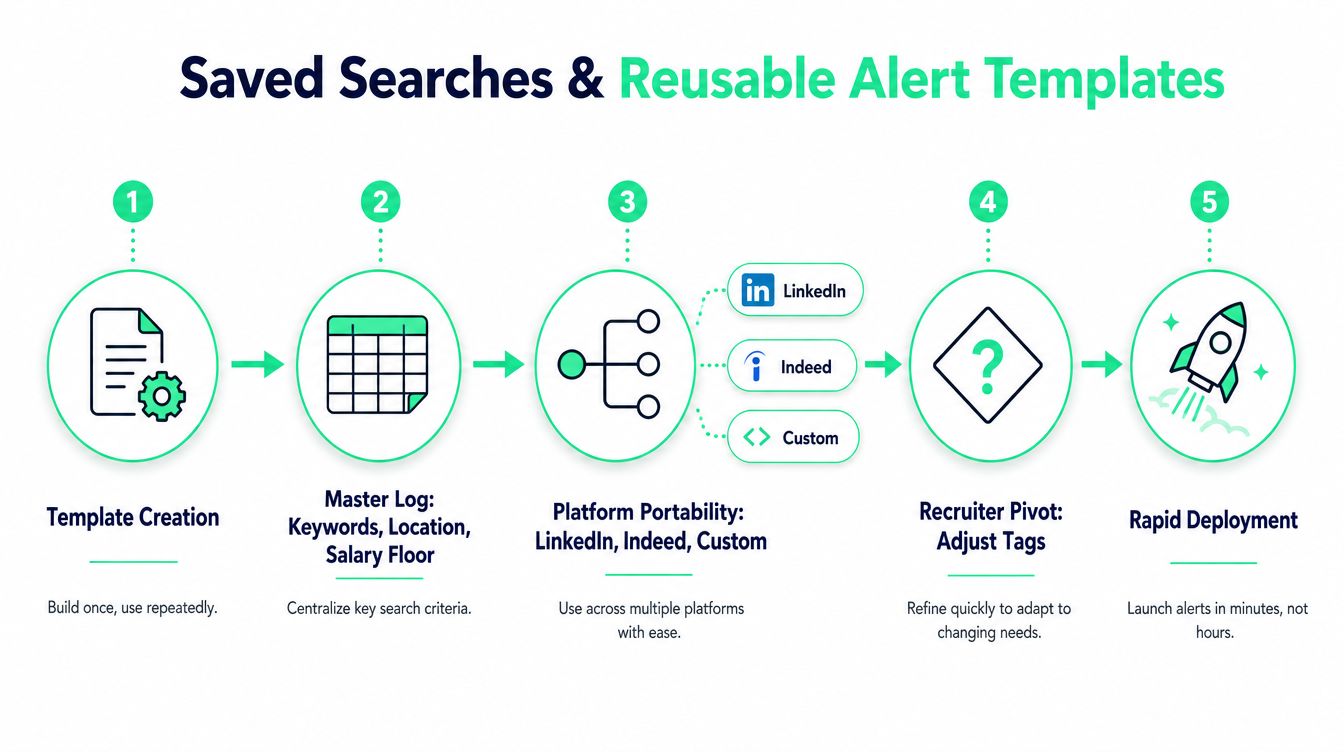
Keep the structure plain and consistent.
- Template name: Role, location, and urgency
- Master fields: Keywords, salary floor, radius, exclusions
- Platform mapping: LinkedIn, Indeed, Glassdoor, niche board
- Review date: Monthly or after a pivot
- Archive rule: Don't delete, disable
That discipline matters when you run more than one search track. You can change the target without rebuilding the machinery.
Timing Alerts Around When Hiring Managers and Recruiters Open Inbox
Timing isn't just about getting the alert fast, it's about getting it into a recruiter's review window before the role gets crowded. Recruitment email benchmarks show open rates vary by region and send hour, and job-alert delivery should respect that instead of averaging everything into one global schedule. One independent ERE analysis reported Europe and Australia around 28% open rates, North America around 20%, and Africa 17.2%. It also found the strongest opens at 4 p.m. at 25.13%, the weakest at 2 a.m. at 13.56%, and Thursday as the best day at 23.13%. ERE email marketing best practices
Match send windows to the market you're targeting
If you're applying to remote roles across regions, your home timezone is the wrong default. The alert should land when the target market is awake, not when your phone happens to be on. That means late morning or mid-afternoon delivery in the market you care about, especially if the platform batches sends.
Daily and weekly digests can still be useful, but they're better for broad scanning than for competitive roles. If the job is likely to move quickly, instant or near-instant delivery is the safer choice, because applying in the first days of a posting measurably raises your odds of an interview. If the search is exploratory, a digest can reduce noise without costing much.
Use geography as a timing variable, not just a location filter
A remote role in another region can have a completely different inbox rhythm from a local opening. If the team is in North America, an alert that arrives in your evening may still be useful, but only if you're willing to act fast. If the team is in Europe, a morning delivery in your own timezone may land too late for same-day review.
| Time Zone | Recruiter Peak Open Window | Best Alert Arrival Window | Worst Arrival Window |
|---|---|---|---|
| North America | Early morning local time | Late morning to mid-afternoon local time | Overnight local time |
| Europe | Early morning local time | Late morning to mid-afternoon local time | Overnight local time |
| Australia | Early morning local time | Late morning to mid-afternoon local time | Overnight local time |
The point isn't to chase perfection. It's to stop delivering alerts at the worst possible moment, when they're most likely to get buried before anyone acts on them.
Layering Automation, Forwarding, and Multi-Channel Delivery
The cleanest alert setups don't force every role through the same pipe. Email is good for full context, Telegram is better for fast mobile pings, and a web dashboard is useful for batch review when you want to compare listings side by side. If you split those jobs cleanly, you stop checking the same alert three different ways.
Route high-priority alerts into a dedicated lane
Gmail filters can route target-company alerts into a labeled folder so they never compete with newsletters. Low-value sources can skip the inbox entirely, which keeps the main stream readable. That's not about hiding work, it's about preventing the wrong alerts from stealing attention.
Here's the setup using Gmail's built-in filters:
- Open an alert email, click the three-dot menu, and choose Filter messages like these. Gmail fills in the sender for you.
- Apply a label like Jobs/Alerts and tick Never send it to Spam.
- For target-company alerts, add Star it so they stand out.
- For broad digests, add Skip the Inbox (Archive it) and read the label once a day instead.
Outlook rules do the same job: move alerts into a folder and flag the ones from target companies.
For mobile-first speed, I've used forwarding rules that push selected alerts into Telegram for triage. A Telegram channel works well for instant pings because it's easy to scan on the move. If a role matters, the message should show up where you'll see it.
Split channel priority by use case
Use email for the full job description and easy archiving. Use Telegram for immediate notification. Use the web dashboard for batch review when you're comparing titles, locations, and salary notes side by side.
Keep instant delivery for target companies, and push broad-market scans into digest mode. If everything is urgent, nothing is.
RSS-to-email bridges can help when a board doesn't offer a native alert that you trust. Auto-archiving roles below your salary floor also removes a lot of triage work before it starts. The goal is not more alerts, it's less time spent deciding whether an alert deserves attention.
For tooling, a dedicated alert app can be useful if it supports source tagging and fast delivery. FindMeJobs job alert app fits that pattern for people who want web and Telegram delivery in one system. That split is how we built FindMeJobs job alerts: matches go to Telegram within minutes of a posting going live, and an email digest twice a day collects everything for review. Filters take boolean keywords plus title and company exclusions, so the setup above carries straight over. Our setup guide walks through it step by step.
Cutting Alert Fatigue Without Dropping High-Value Roles
Alert fatigue is usually a signal-quality problem, not a volume problem. Broad keywords catch roles you'd never take, "remote" often matches hybrid jobs you can't realistically do, and overlapping boards duplicate the same opening until the feed feels broken. Once that happens, people stop trusting the alerts that matter.
Tune out the noise without flattening the search
Start by excluding staffing agency titles, because they often produce the noisiest duplicates. Then cap geography tightly so you don't keep getting roles that are technically near your search area but useless in practice. If salary disclosure matters to you, require it where the platform allows, because unlisted compensation usually adds extra triage time.
Negative keywords matter more than you might think. If you would never take a manager, intern, support, or sales-adjacent role, exclude those terms early. That keeps adjacent matches from clogging the path to the roles you want.
Review the system on a weekly cadence
A weekly review should answer three questions. Which searches triggered zero applications, which searches triggered too many false positives, and which searches are worth splitting into narrower tracks. If a search never produces a real application, prune it. If it produces too much noise, tighten it.
Use three tiers for delivery. Put target-company roles into instant alerts, broad market scans into daily digests, and low-priority market watch into weekly review. That structure keeps speed where timing matters and preserves sanity everywhere else.
Track apply rate per alert source and false positive ratio. Those two metrics tell you whether your setup is helping you move faster or just making you feel busy.
Your First-Week Job Alert Email Checklist
The fastest way to clean up your system is to rebuild it in seven days instead of tinkering forever. Start by tagging every source as core, secondary, or noise. That alone usually reveals which alerts deserve a dedicated lane and which ones belong in the archive.
On day two, write three role-specific boolean queries. Day three is for location and salary filters: validate the queries against the last 30 days of listings, and if the false positives are high, fix the exclusions before you add more sources. Day four turns your master sheet into saved searches, two on LinkedIn, two on Indeed, and one on a niche board.
Day five is for filter rules in Gmail or Outlook, with priority markers and skip-inbox routing for low-value mail. Day six should lock in timezone-aware send windows and confirm that any RSS or Telegram mirror fires. Day seven is the live test, where you measure how many alerts become real applications in 24 hours.
By the end of day seven, the system should be pruned, renamed, and stable enough to trust. If it still feels chaotic, the problem is usually search logic, not the platform.
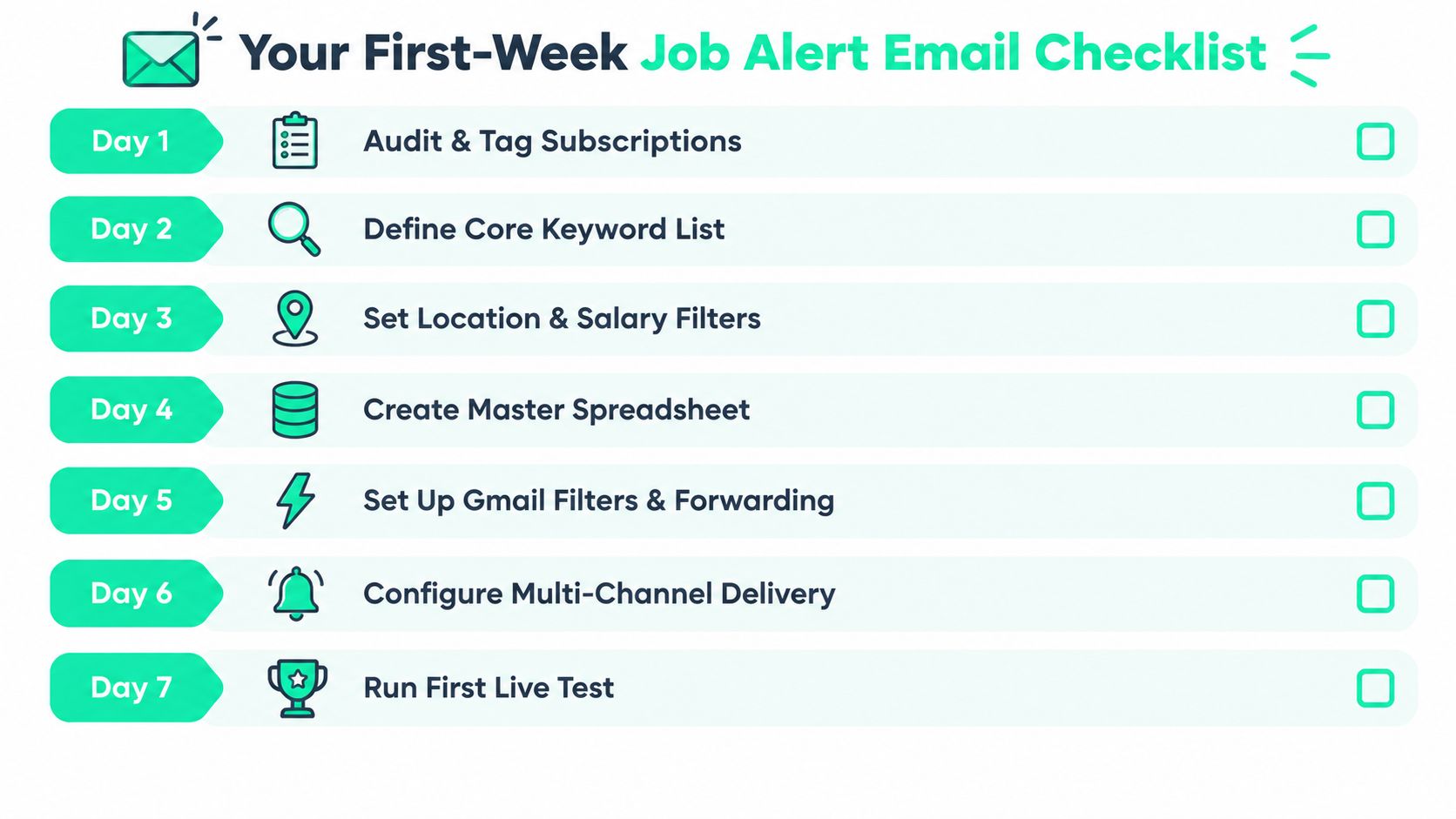
- Day 1, Audit & Tag Subscriptions: Outcome, every source labeled core, secondary, or noise.
- Day 2, Define Core Keyword List: Outcome, three boolean queries written and tested.
- Day 3, Set Location & Salary Filters: Outcome, false positives reduced on the last 30 days of listings.
- Day 4, Create Master Spreadsheet: Outcome, one reusable template per target role.
- Day 5, Set Up Gmail Filters & Forwarding: Outcome, high-priority alerts bypass the main inbox.
- Day 6, Configure Multi-Channel Delivery: Outcome, Telegram or RSS mirror delivers as expected.
- Day 7, Run First Live Test: Outcome, one full alert cycle measured and reviewed.
For the document side of the search, FindMeJobs resume builder can sit next to this setup if you want your application materials aligned with the roles your alerts surface. The point is to keep discovery and tailoring connected, so you don't lose the timing advantage after the alert lands.
Frequently Asked Questions
How do I get job alerts by email?
Run a job search on LinkedIn, Indeed, or Glassdoor with the title and location you want, then turn on the alert for that search. All three email matches to your account address, daily or weekly. Before you save it, tighten the search with title variants and exclusions so the email only contains roles you would apply to.
Why am I not getting job alert emails?
Check four things. Indeed skips a send when no new jobs match, so a narrow search can go quiet. Look in spam and Gmail's Promotions tab. Confirm the alert is still switched on in your account settings. And if the search is very specific, loosen one filter and see whether mail starts arriving.
Are daily or weekly job alerts better?
Daily if you are actively applying, weekly if you are only watching the market. For competitive roles neither is fast enough, because a daily digest can reach you most of a day after a posting goes live. Use instant notifications for your target roles and keep digests for broad scans.
How do I stop job alert emails?
Click the unsubscribe link at the bottom of any alert email, or switch the alert off in your account's notification settings. On Indeed you have to delete each alert separately if you have more than one. Pausing is usually better than deleting, since you can bring the search back later.
If you want a tighter alert system without rebuilding everything from scratch, use FindMeJobs to combine real-time job discovery, source filtering, and resume tailoring in one place. It's useful when you want fast alerts plus a cleaner path from notification to application, especially for roles where timing still decides who gets seen first. Start a 7 day free trial, no card required.